Product News
Introducing AI Review Manager for Shopify: Know Which Reviews Sell, and Which Ones Cost You

Getting reviews onto your product pages is a solved problem. Most review apps will collect them, most will display them, and the good ones will make the widget look like it belongs on your store.
What almost none of them do is answer the question that comes next. You have three hundred reviews. Which of them are actually persuading someone to buy? Which ones are quietly costing you customers? Is a 4% review rate good for a store that sells what you sell — or is it a problem you haven’t noticed yet? AI Review Manager is CREMA Review’s answer to that: three screens that turn a pile of reviews into a short list of decisions. It’s rolling out to every Shopify store now.
What’s new
What it does | Who sees it | |
|---|---|---|
Home | What needs a decision today, and how you compare to similar stores | All Shopify stores |
Manage new reviews | Which of this week's reviews will actually sell | All Shopify stores |
Manage issue reviews | Negative and flagged reviews, highest-cost first | All Shopify stores |
Guided tutorial | A walkthrough of the settings that lift conversion | All Shopify stores |
Core feature settings | Three core settings, gathered on Home | Newly onboarded stores |

1. Home: what needs your attention today
Home is the front page of your review operation. It answers three questions on one screen: what needs a decision today, how you’re doing compared to stores like yours, and what to do about it.
📌 Cards that tell you what needs attention today
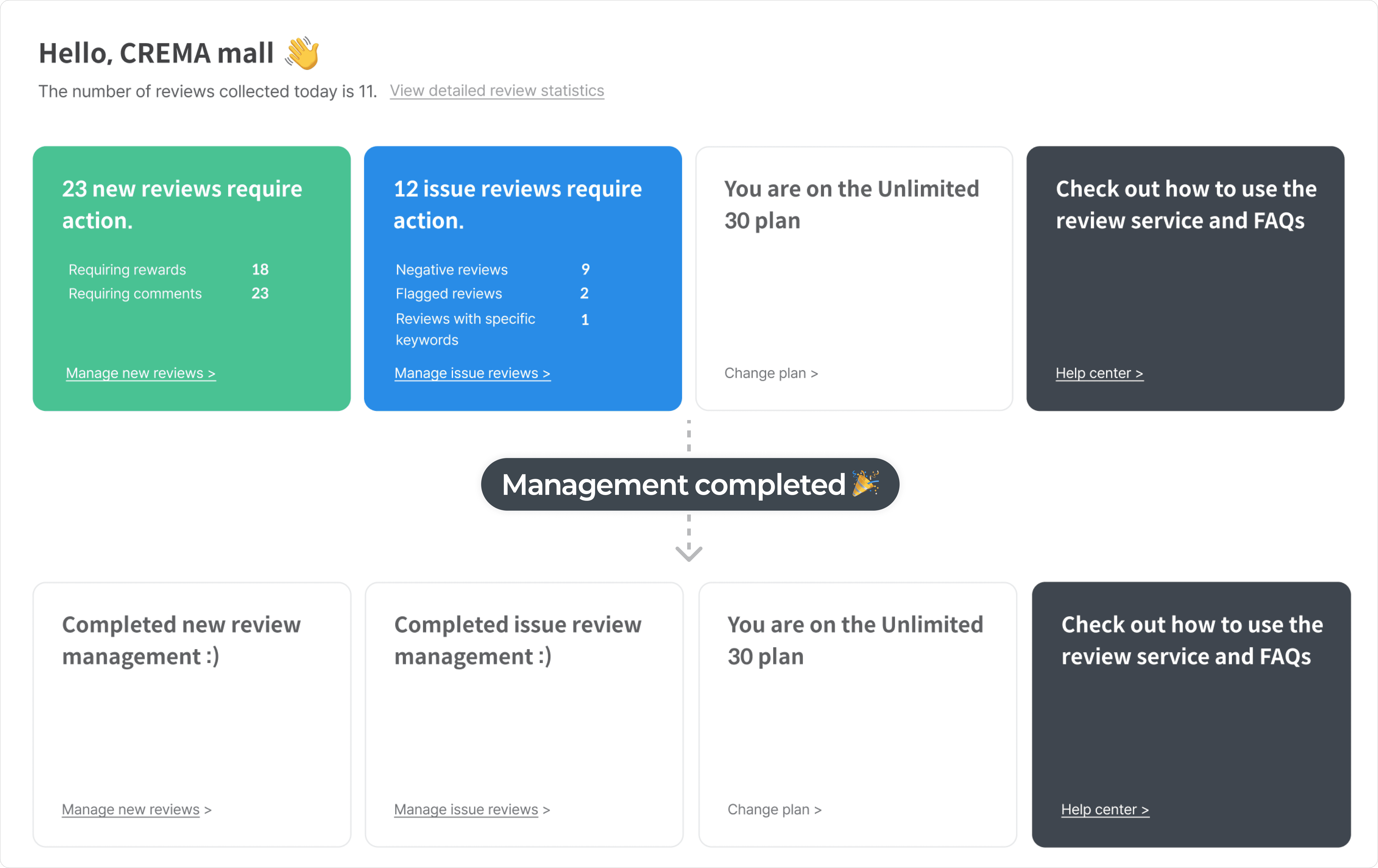
Four cards run across the top. New review management and Issue review management are counters with somewhere to go — one drops you into Manage new reviews, the other into Manage issue reviews. Between them they cover the only two things worth doing to a review: amplifying it, or answering it.
The third card shows your plan. On Unlimited, it’s a quiet confirmation. On Free or Flexible, it’s a progress bar of the orders you have left this cycle — because running out mid-month is the kind of thing you’d rather find out about before it happens. Change plan sits right on the card. The fourth is Help center, CREMA’s English documentation one click away.
📌 Three core settings, gathered right below
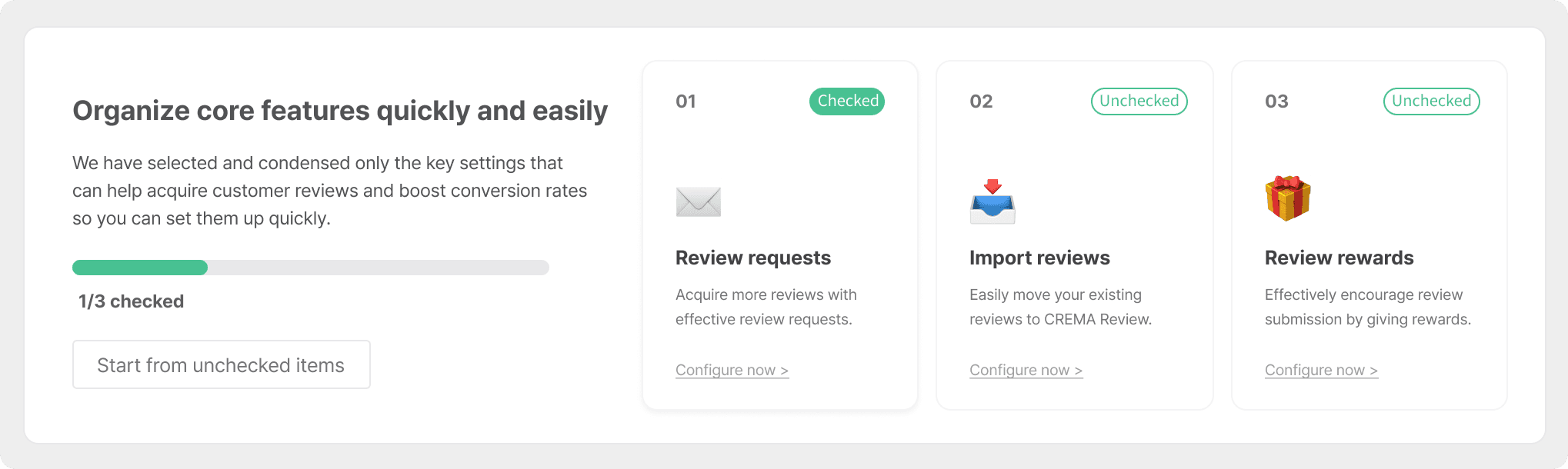
Under the cards sits a section titled Organize core features quickly and easily: three settings, a progress bar, and a button that takes you straight to whichever one you haven’t checked yet. They’re the settings that decide whether reviews arrive at all — lifted out of the settings menu and put somewhere you’ll actually see them.
The section is for stores that haven’t set them up yet. Once all three are checked you can close it, and it won’t come back — the settings live on in your settings menu, which is where they belong once they’re done. If you’ve been running CREMA Review for a while, you won’t see this section at all.
01. Review requests
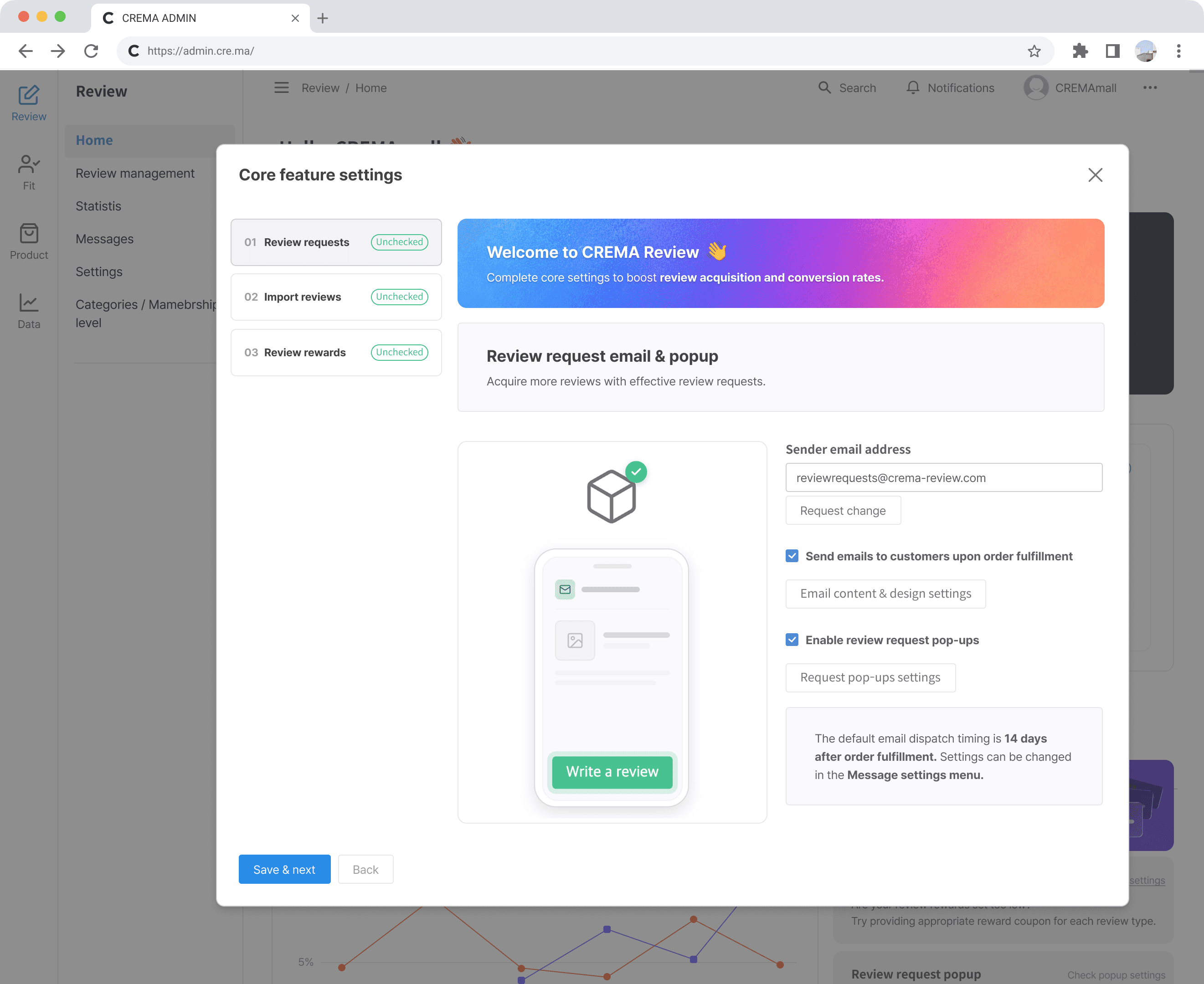
Your sender email address is already filled in, so review request emails can start going out as soon as you save. That address is a default, not a limitation: if you’d rather review requests came from your own store’s email, click Request change, enter the address you want, and verify your email address. Two settings sit under it, both switched on for you: Send emails to customers upon order fulfillment, which goes out 14 days after fulfillment by default and can be re-timed in the Message settings menu, and Enable review request pop-ups, which catches the customers who come back to your store without ever opening the email. Based on the average review submission rate across CREMA stores, running the pop-up alongside email lifts review volume by more than 10%.
02. Import reviews
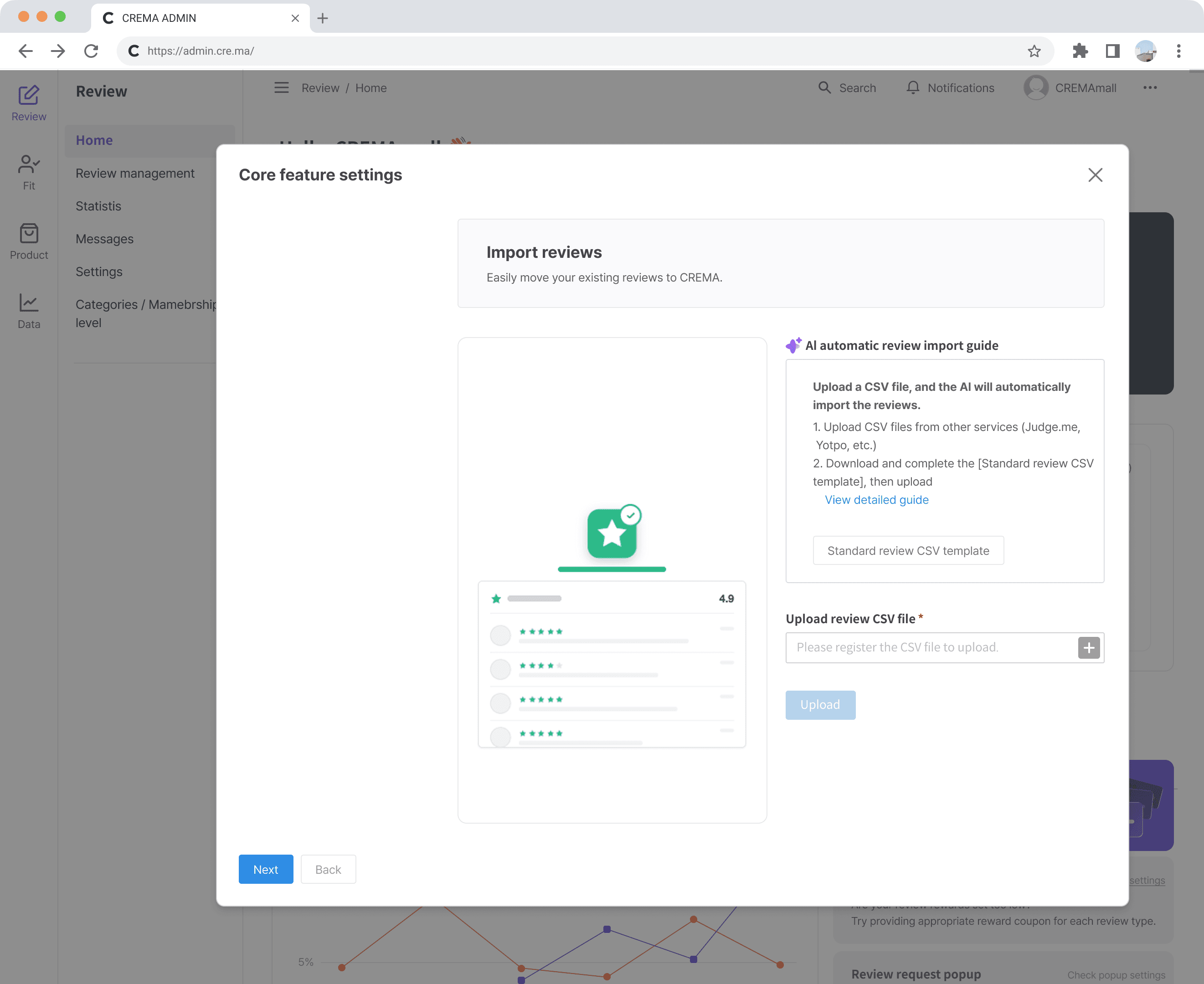
If you’re arriving from another review app, this is where your existing reviews come across. Export a CSV from Judge.me, Yotpo, Loox — or anywhere else — and upload it. There’s no source to select and no template to match: the AI reads whatever your columns happen to be called, normalizes date and rating formats, and converts the file encoding if it needs converting. An empty widget converts nothing, which is why this sits at step two rather than in a settings menu somewhere.
03. Review rewards
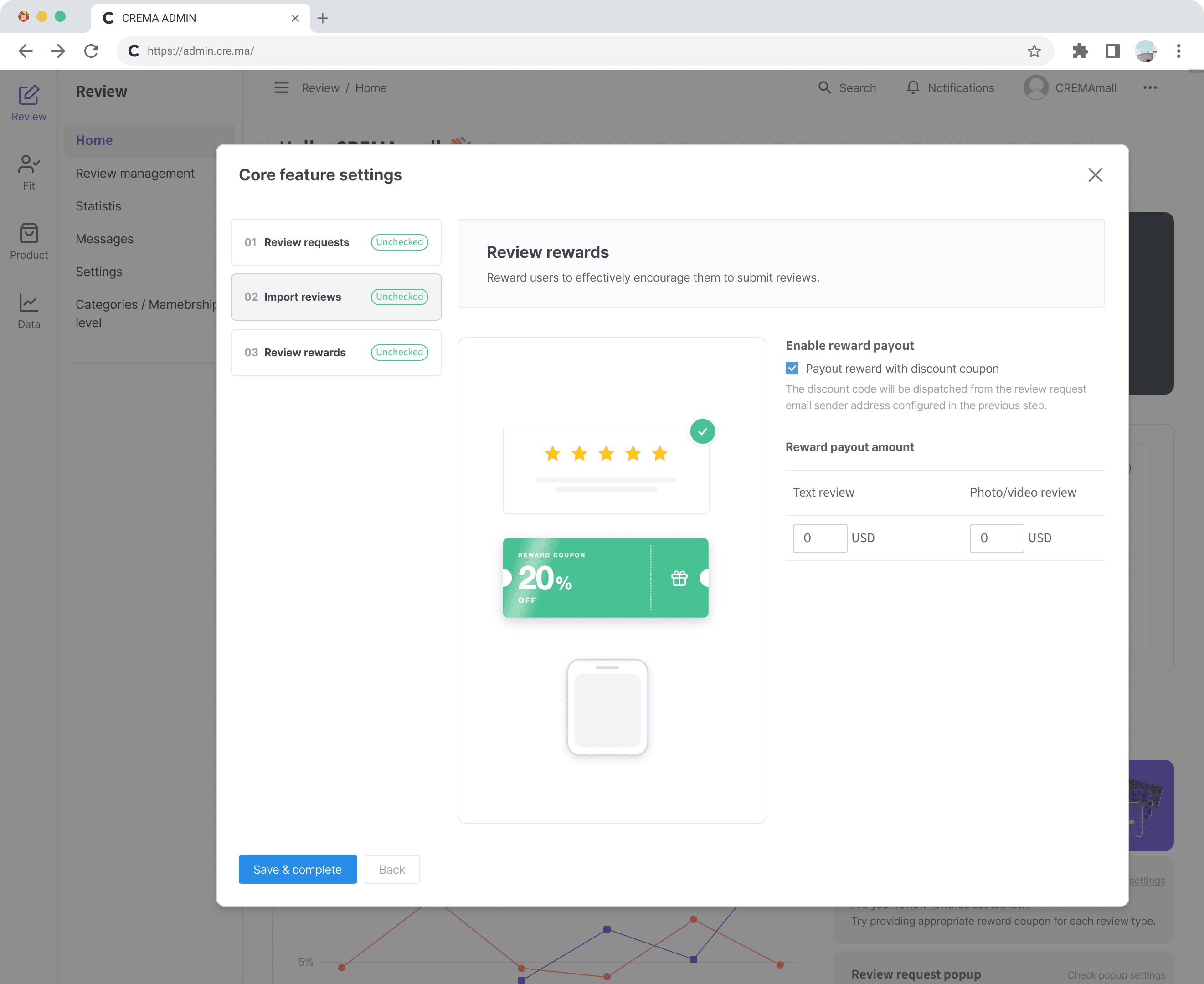
Decide whether you’re offering a reward and how much, split between text reviews and photo/video reviews. Amounts are entered in your store’s own currency, synced from Shopify. Setting the photo and video amount higher is worth doing deliberately — those are the reviews shoppers actually stop and read. The discount code then goes out through the review request email you set up in step 01, so the three steps close a loop. Step away halfway through and nothing is lost. The progress bar holds your place until all three are checked.
And if you’ve just installed the app, you don’t have to go looking for this section at all — Core feature settings opens on its own the first time Home loads, right after onboarding. Install, onboarding and setup run as one continuous flow, instead of leaving you on an empty dashboard wondering what to do first.
📌 How you compare to stores like yours
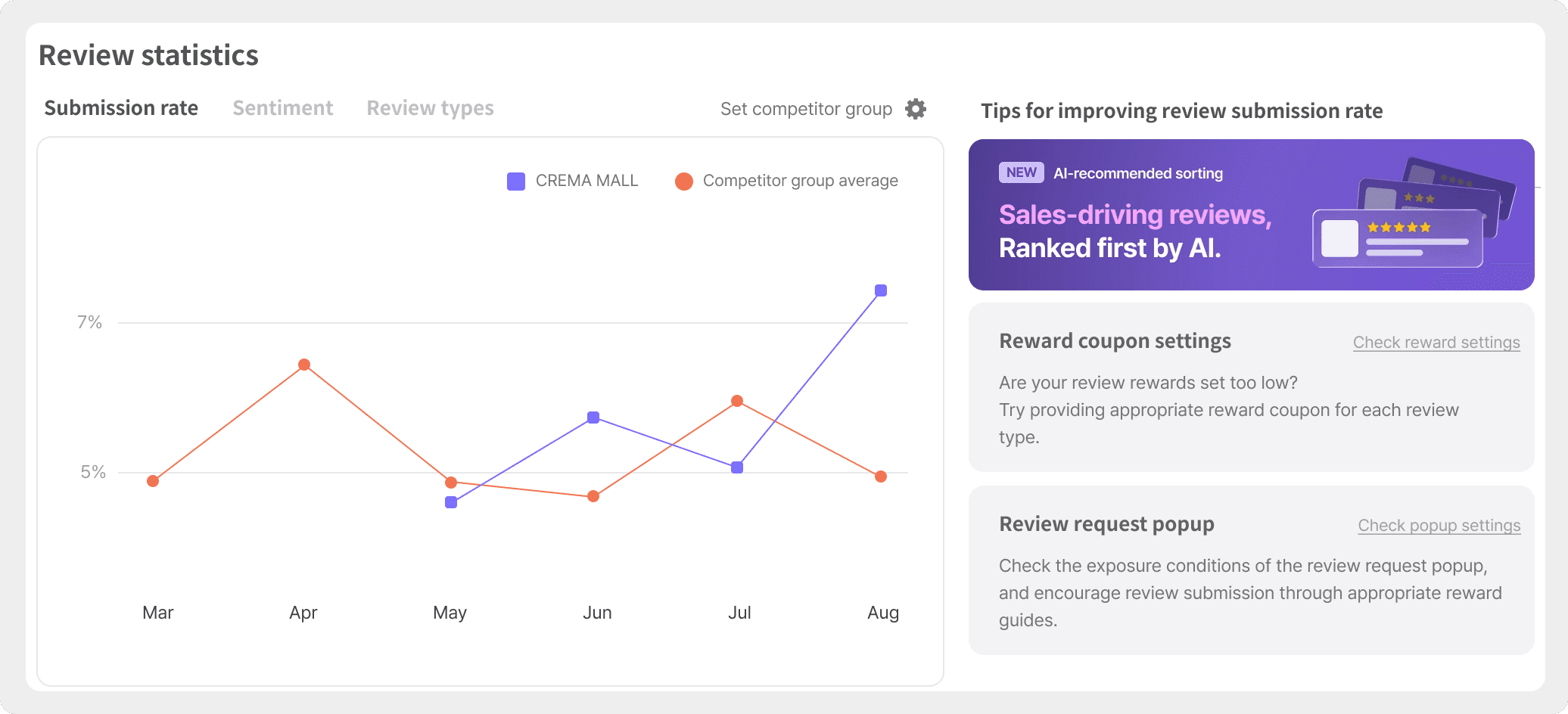
A review submission rate is a hard number to read on its own. Is 4% good? It depends entirely on what you sell, and on whether the people who buy it are the type to write. So Review statistics puts your numbers next to a competitor group you define — by product category, customer gender, age range, etc. Three tabs sit on top of it: Submission rate, Sentiment, and Review types.
The point isn’t the ranking. It’s knowing which of the three is your actual weak spot before you spend a month fixing the wrong one. A store with a healthy review rate but almost no photo or video reviews has a completely different problem from a store full of photo reviews that nobody is writing.
📌 Tips, not just numbers
Beside the chart, Tips for improving review submission rate turns each reading into something you can act on. Reward coupon settings asks the blunt question — Are your review rewards set too low? — and links straight to the setting. Review request popup prompts you to check the conditions under which your pop-up actually appears. Both are one click from the screen that fixes them. Above them, a rotating banner surfaces features you may not have turned on yet — AI-recommended sorting, AI review summary — each linking to a full write-up.
2. Manage new reviews: find the ones that actually sell
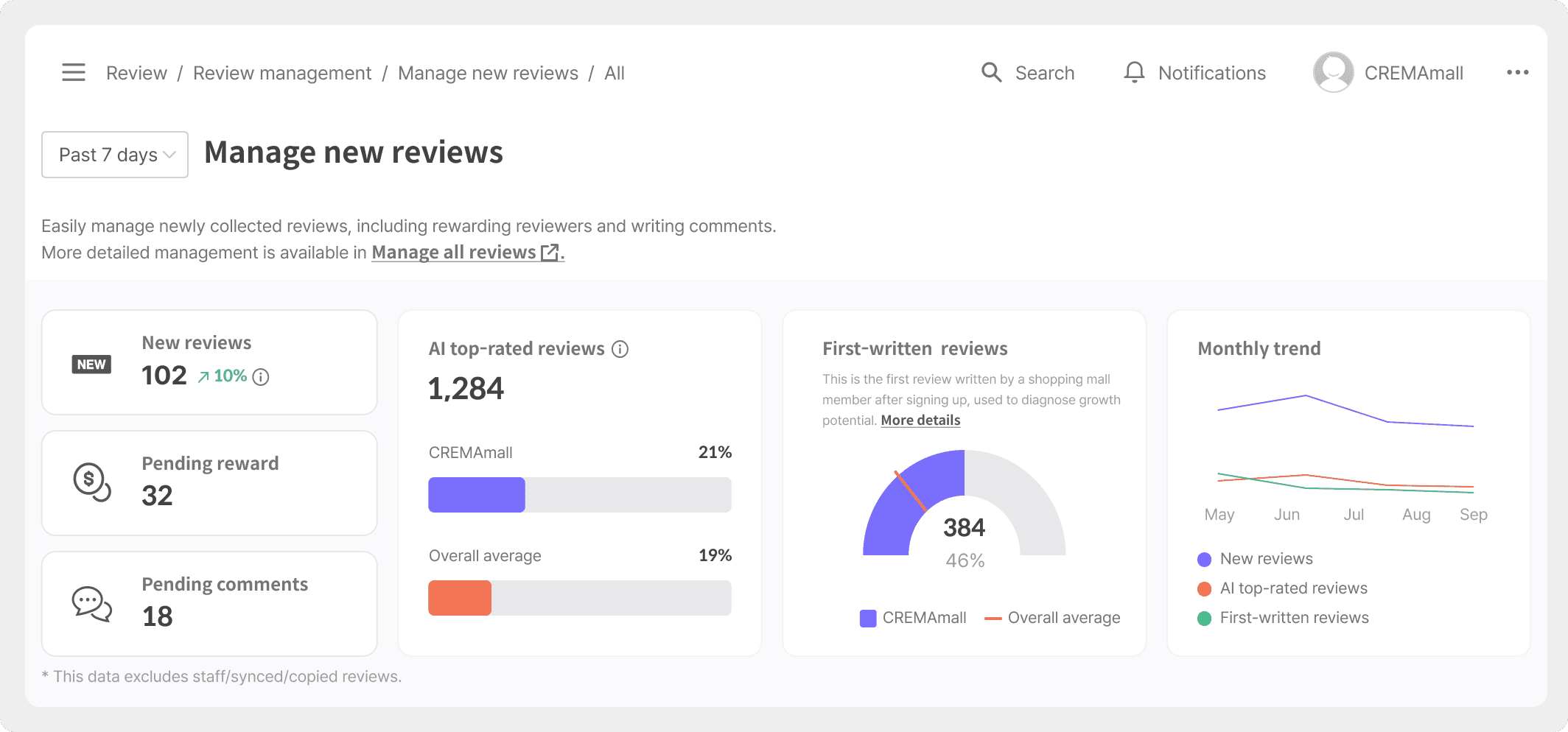
Reviews come in. A few of them are worth your time today, and most aren’t. This is the screen that tells you which is which. Four counters run across the top for the period you choose — the last 7 days by default: new reviews, pending rewards, pending comments, and how your AI top-rated reviews compare to the overall average across CREMA stores. Staff, synced and copied reviews are excluded from all of it, so what you’re looking at is genuine customer activity.
📌 AI top-rated reviews
Not every review sells. A one-line “good” and a detailed review with photos of the product in use do very different things to a shopper who’s still deciding — and a widget full of the first kind looks busy while converting nothing.
So CREMA’s AI reads each new review for text density, whether it includes photos or video, and the presence of specific positive detail, then flags the ones carrying real persuasive weight as AI top-rated reviews. The share is shown next to the overall average, which turns a vague worry into a number: are your customers writing the kind of reviews that convert, or just the kind that pile up? Find one you like and you can pin it as a Featured review, so it sits at the top of your widget where it does the most work.
📌 First-written reviews
A separate gauge tracks first-written reviews — the first review a customer has ever written for your store. It’s a different signal from volume. Ten reviews from one loyal customer and ten from ten new ones say very different things about where your brand is heading. A monthly trend chart puts all three together: new reviews, AI top-rated, and first-written.
📌 Handle it without leaving the page
The tabs underneath filter to exactly the group you want to work through — Pending rewards, Pending comments, AI top-rated reviews, First-written reviews. Issue the reward, write the reply, move to the next one, all from the same table.
3. Manage issue reviews: catch the ones that cost you
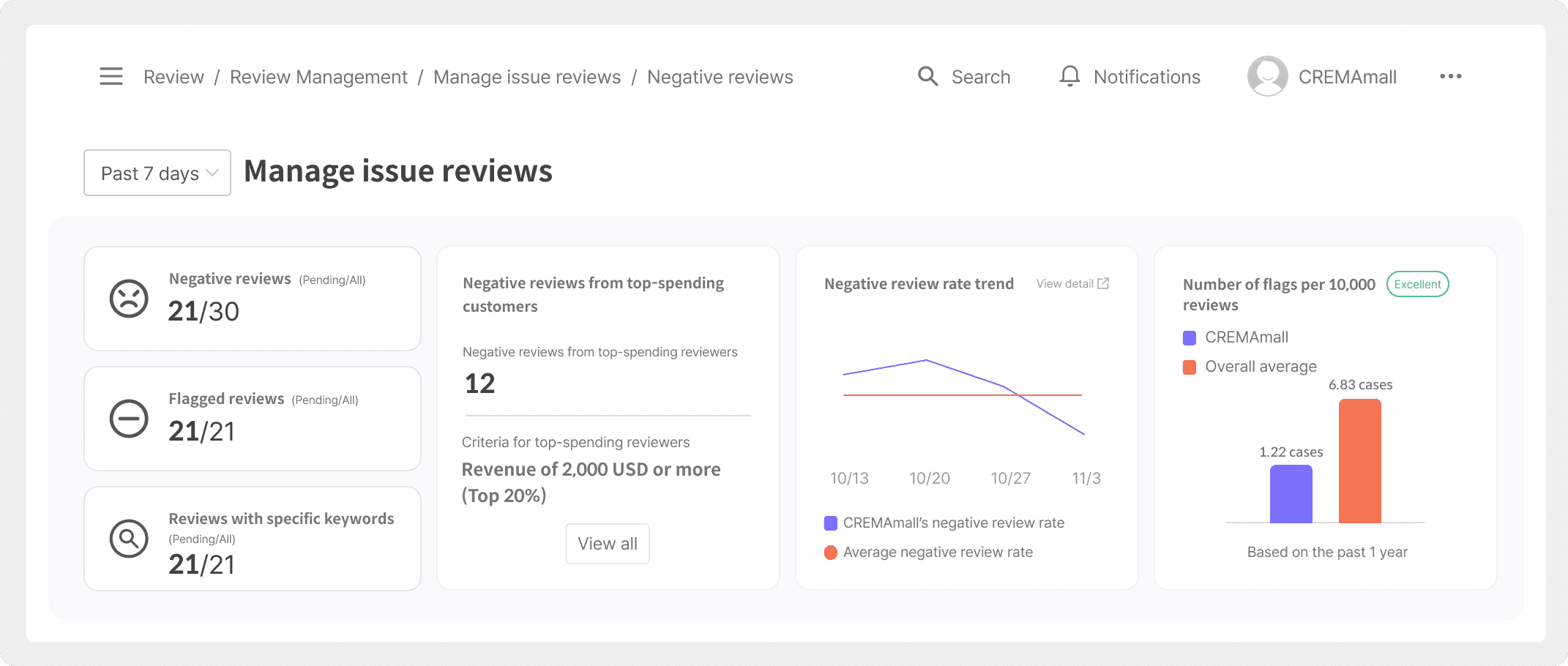
The reviews that hurt you don’t announce themselves. Manage issue reviews gathers all of them in one place: negative reviews, reviews your shoppers flagged, and reviews containing keywords you’re watching for — each with a pending count, so nothing sits unhandled by accident.
📌 Negative reviews, detected by context
CREMA’s AI reads context and sentiment rather than the star rating alone. That matters more than it sounds. A four-star review can carry the complaint you most need to answer, and a two-star can turn out to be about a delivery delay that has nothing to do with your product. Sorting by rating finds neither of them.
A negative review rate trend runs alongside the overall average, so a rough week reads as a rough week — and a slow climb over three months reads as the operational problem it probably is.
📌 Your top-spending customers, surfaced first
Among negative reviews, some cost far more than others. A complaint from one of your highest-spending customers is not the same as a complaint from a first-time buyer, and it shouldn’t wait in the same queue.
So negative reviews from top-spending customers get their own card and their own filter. Reply, resolve, or escalate to your CS team before a high-value relationship quietly ends. It’s the kind of thing that’s obvious in hindsight and invisible in a chronological list.
📌 Flags, in context
A fourth card tracks flags per 10,000 reviews over the past year, benchmarked against the overall average and rated for you. It answers the question a raw flag count never does: is this normal for a store like mine, or is something actually wrong?
4. A guided tutorial for the settings that lift conversion

AI Review Manager tells you what to do. The settings that carry it out sit one layer deeper — and that’s what the tutorial walks you through. It’s always available from the ’?’ button in the bottom right, and it opens on its own for new stores once the core feature settings are done. Three walkthroughs, each one clicking through the actual settings screen rather than describing it:
Basic widget settings — the Reviews widget that ships with your store, plus where to turn on AI-recommended sorting, AI review summary, and AI review keywords.
Custom questions — collecting size, height, age range and many more alongside the rating, so shoppers can filter to reviewers like themselves.
Group reviews — sharing one review pool across bundles, variants, and relaunched products, so a new listing doesn’t start at zero.
5. Getting started
Already using CREMA Review on Shopify? There’s nothing to install and nothing to switch on. Open your admin and Home will be in the menu, with Manage new reviews and Manage issue reviews under Review management.
Not yet? Install CREMA Review from the Shopify App Store. Onboarding takes a few minutes, the core feature settings open on the other side of it, and your first review requests can go out the same day.
FAQ
Do I need to install or turn anything on? No. AI Review Manager is rolling out to Shopify stores automatically.
How does CREMA decide which reviews are “top-rated” or “negative”? For AI top-rated reviews, the AI looks at how much a review actually says — text density, whether it includes photos or video, and the presence of specific positive detail — because those are the reviews that move a shopper who’s still deciding. For negative reviews, it reads context and sentiment rather than the star rating alone, which is how a four-star review with a real complaint still reaches you.
What is a competitor group, and how is mine set? It’s the set of stores your numbers are benchmarked against, and you define it yourself — product category, customer gender, age range, etc. You can change it any time from Set competitor group on Home.
How are “top-spending customers” determined? CREMA calculates it from purchase history at your own store, so it reflects your customers rather than a global threshold. The criteria in use are shown on the card itself.
Which review apps can I import from? Judge.me, Yotpo, Loox — and anything else that exports a CSV. You no longer select a source; the AI reads your file and maps the columns itself.
What happens if my import fails? You’ll get a result screen with the reason. If only some rows failed, the rest are imported and you can download a CSV containing just the failed rows and what went wrong with each.
I’ve been using CREMA Review for a while and I don’t see the core features section. Why? It’s there for stores that haven’t set those three up yet. Yours are long since done, and every one of them is still in your settings menu. Everything else here — Home, Manage new reviews, Manage issue reviews, and the tutorial — is available to you right now.
Collecting reviews is the easy part. Knowing which ones to put in front of a shopper, and which ones to answer before they cost you a customer — that’s the part AI Review Manager was built for.
Try it on your Shopify store today.